How to enable Secure Boot for Battlefield 6 open beta preload
Thanks to EA's anti-cheat, players are encountering issues pre-loading Battlefield 6. Here's how to check if Secure Boot is enabled and how to enable it.

The Battlefield 6 Playtest is available to pre-load on Steam, but not everyone is having an easy time jumping in. The next entry in EA’s long-running first-person shooter series will require an anti-cheat called Javelin. This kernel-level software will have high-level access to the files on your computer, and you may encounter issues when your computer doesn’t have secure boot enabled. This will prevent you from playing the game. How do you check if Secure Boot is enabled, and how do you turn it on? We have the answers.
The Battlefield 6 open beta is ready for pre-load, but be prepared for this potential issue
- The Battlefield 6 open beta is ready for pre-load, but be prepared for this potential issue
- How to check if Secure Boot is enabled
- Requirements for enabling Secure Boot
- How to enable Secure Boot
As of this morning, the BF6 open beta pre-load is now available. The ability to play BF6 won’t be available for at least a few more days, depending on whether you have opted into early access or not, but you can begin the download now so you won’t have to wait when the beta goes live. With this, players are now encountering issues with computer requirements. EA has shared PC requirements on Steam, but there could be one issue that is giving some players trouble.
If you’ve played other multiplayer EA games recently without encountering issues, you might be all set. EA uses the same anti-cheat software across many of its modern multiplayer games, Javelin. This is a kernel-level software, which means it can interact with the core of the operating system, and gives the software the highest level of control over your computer’s memory, hardware, and other components. But it needs certain settings enabled to work.
How to check if Secure Boot is enabled
For Javelin to work, your computer will need to have Secure Boot enabled. Trying to pre-load BF6 and Javelin ahead of the beta without Secure Boot will result in an error. But thankfully, if you are pre-loading, you still have a few days to sort out the issue. The easiest thing to do is to check to see if Secure Boot is enabled.
- First, hit Windows Key + R. This will open the small “Run” window.
- Type in “msinfo32” and click “Ok” or hit Enter. This will bring up the System Information window.
- Select “System Summary” on the left-hand side of the window.
- Scroll through the “Item” column to find two categories: BIOS Mode and Secure Boot State.
- If BIOS Mode’s value reads “UEFI” and Secure Boot State is “On,” then you are good to go.
- If either category says something else, that could be what’s causing the issue. This window is not the place to do it. You’ll need to take further steps below.
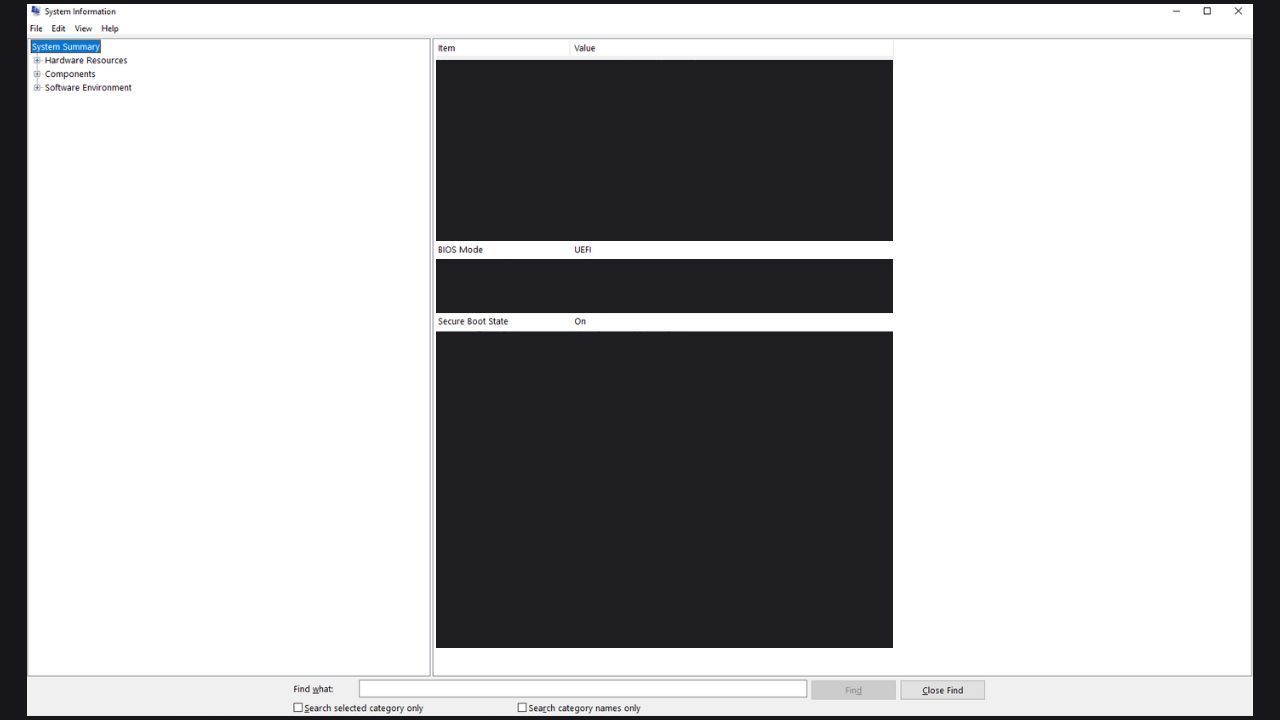
The System Information window.Screenshot by me
Requirements for enabling Secure Boot
Before you go straight to enabling Secure Boot, there are a few more things to check. First, if your BIOS mode from the previous checks did not say “UEFI,” then you may need to switch firmware. The way to switch this varies with each computer. You may be able to find your BIOS Settings in your Windows Settings, but you’ll likely need to restart the computer and access the Advanced Startup settings, where you can also enable Secure Boot.
Check if TPM 2.0 is enabled by using the Windows Key + R to bring up the “Run” window again. Type in “tpm.msc” and select “Ok.” The Status should read something like “The TPM is ready for use.” If it isn’t ready, you may need to refer to your manufacturer to enable it correctly.
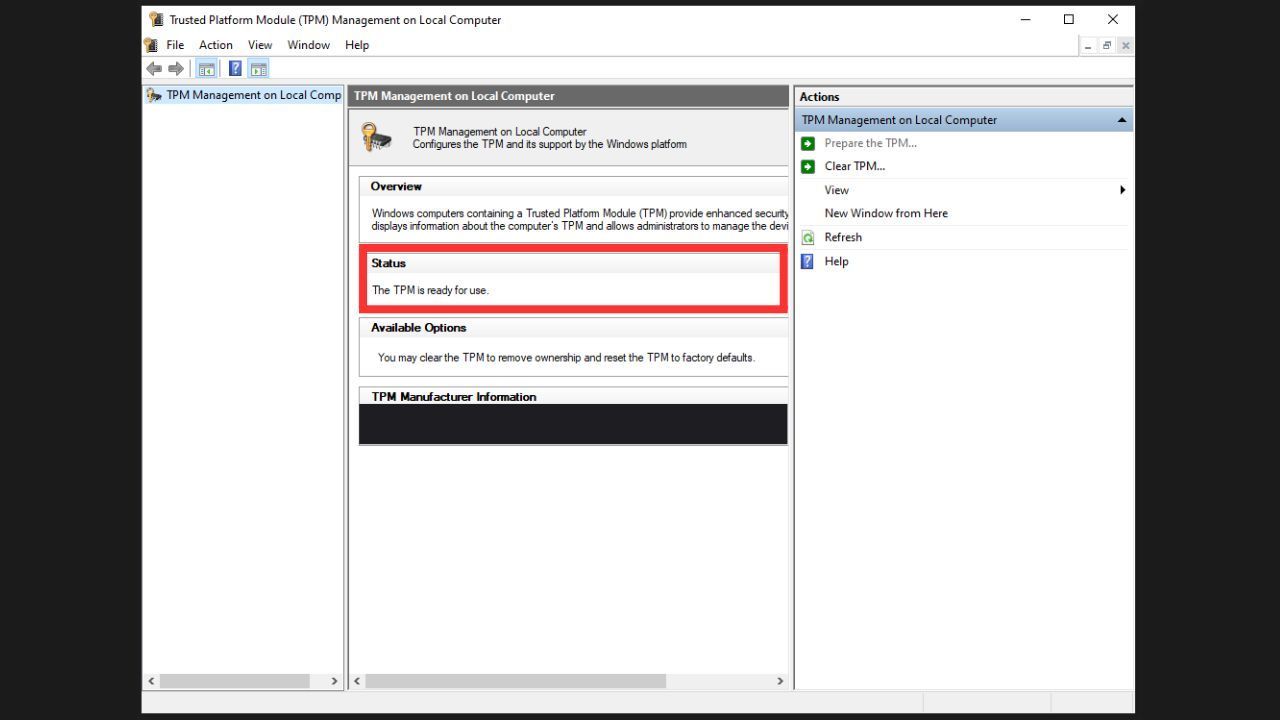
Check if TPM is enabled.Screenshot by me
Finally, you’ll also need to check if your Windows disk is MBR or GPT. To check, hit Windows Key + X, then choose “Disk Management.” Right-click on Disk C and select “Properties,” navigate to the Hardware tab, then select “Properties” again, and choose the Volumes tab. Check the Partition Styles. If it says GPT, you are good to go. If it says MBR, check EA’s website for details on how to switch it.
How to enable Secure Boot
The steps to enable Secure Boot may vary depending on your computer. Also, don’t worry too much if your windows look different than those in these screenshots. Be prepared, you will need to restart your computer during this process.
- Hit the Windows Key and search “Change Advanced Startup Options.” Or open your Windows Settings and navigate to Update & Security, then scroll down to Recovery.
- Find the Advanced Startup, which should have a paragraph of text with a button below that reads “Restart now.” Choosing this will restart your computer, so make sure you have the rest of the instructions written down or open on your phone.
- Select “Restart now” and allow the computer to reboot. Once it reboots, select Advanced options.
- Once in Advanced options, select UEFI Firmware Settings. This will open up your BIOS settings menu, which can vary in appearance between manufacturers. But if you have trouble finding anything, most settings will have a search function, which can be accessed through the F9 key.
- Find the “Boot” tab. If Secure Boot State is set to “Disabled,” change it to “Enabled.”
- Back out of the settings and log on to your computer. Try the download for Battlefield 6 again, and it should work this time.
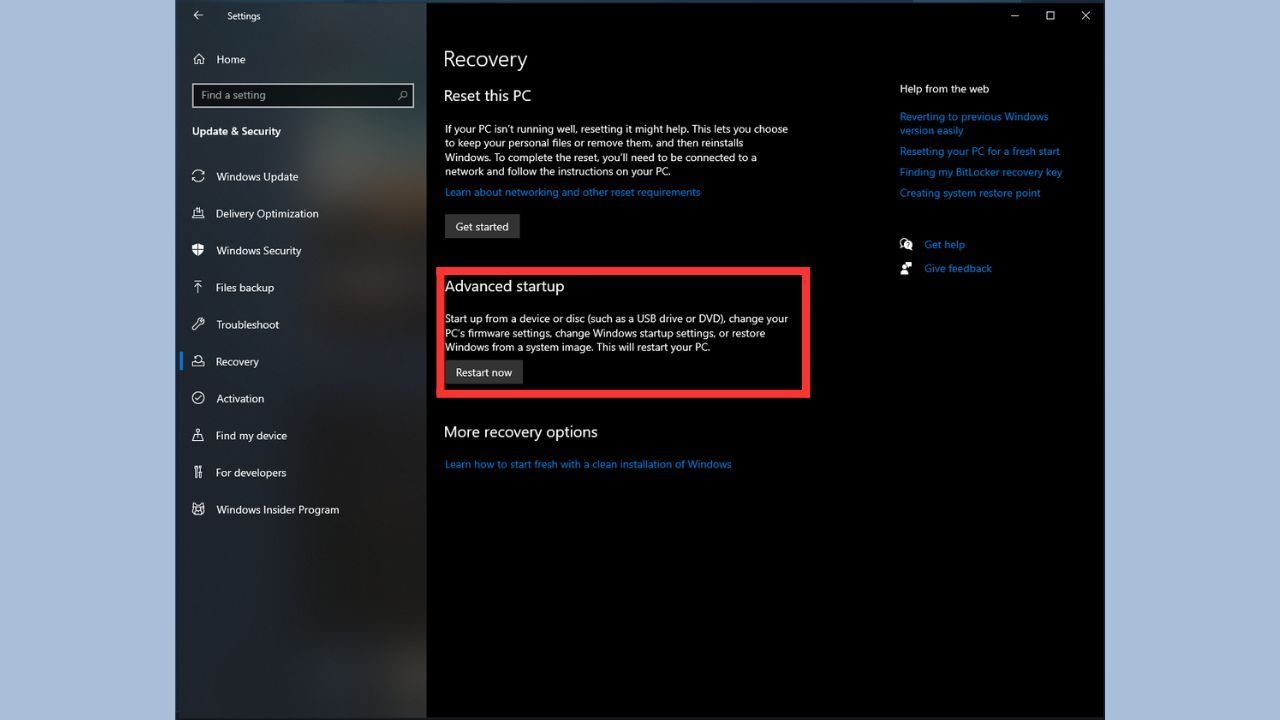
Advanced Startup settings.Screenshot by me



0

Author: Matt Buckley
Matt has been writing for Gamepressure since 2020, and currently lives in San Diego, CA. Like any good gamer, he has a Steam wishlist of over three hundred games and a growing backlog that he swears he’ll get through someday. Aside from daily news stories, Matt also interviews developers and writes game reviews. Some of Matt’s recent favorites include Arco, Neva, Cocoon, Animal Well, Baldur’s Gate 3, and Tears of the Kingdom. Generally, Matt likes games that let you explore a world, tell a compelling story, and challenge you to think in different ways.


Latest News
- Because of the final boss, I never gave up on entire genre, but the wonderful Rayman 2: The Great Escape hasn't aged a bit
- The free version of the cult classic shmup Tyrian has been updated after 4 years
- A new Nod campaign has been added to The Dawn of the Tiberium Age, a freeware Command & Conquer RTS
- Fans have removed the time limit from The Blood of Dawnwalker
- Empire II: Total War now with two extra historical campaigns