Songs of Conquest: Can the pixel art style be turned off?
Songs of Conquest features pixel art style graphics that will not appeal to all players. This page of the guide explains if you can turn off the large pixels and how to find interactive places on the map more easily.
Last update:
The pixel art style of Songs of Conquest causes controversy, as it greatly lowers the readability of objects and characters on the screen. On this page of our guide, you'll learn whether you can disable pixel art mode and furthermore, we show a good way of additionally discerning interactive objects on the map.
Can pixel art be disabled?
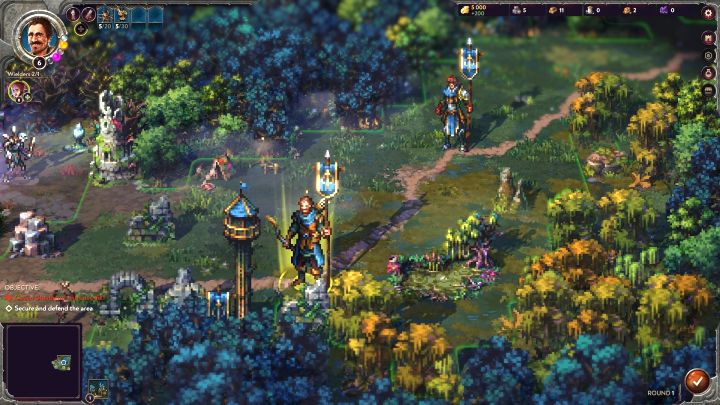
- The pixel art style is one of the unique features of Songs of Conquest, but it may not appeal to players accustomed to the graphics of, for example, Heroes of Might & Magic series.
- Pixel art is characterized with objects and characters being built from large pixels. This is especially noticeable and troublesome with maximum camera zoom. This can not only cause discomfort, but also impair the readability of elements on the screen.
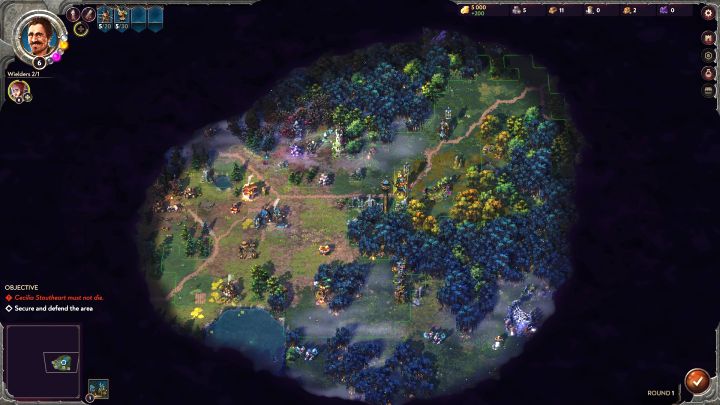
- You can't disable pixel art entirely, as this is the design and one of the foundations of the game and there aren't any alternative graphics modes present in the title.
- You can partially lessen the effect of bothersome large pixels by zooming the camera out. The disadvantage here may be that you may have problems discerning small objects with this mode active.
- Unfortunately, in the Video tab of game options, you won't find any options affecting or changing the pixel art design. The only settings available here are Bloom and Depth of Field. These options are enabled by default and you can see how the graphics change with them disabled.
How to identify objects on the screen more easily?
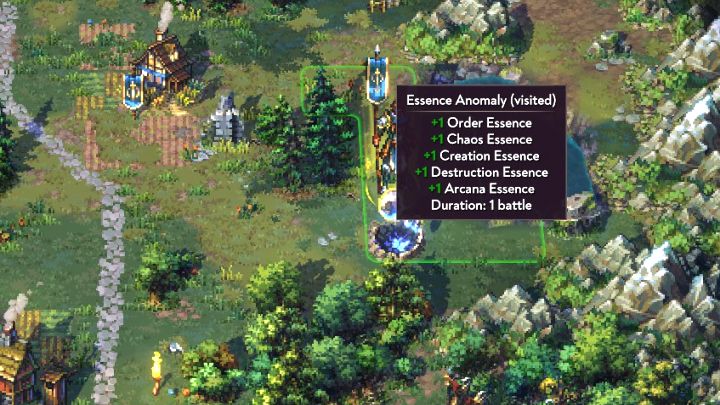
- A possible workaround for the low readability of game elements is the option to highlight interactive objects. The feature can be used for free and isn't limited in any way - simply hold ALT button to activate it.
- With the aforementioned option enabled, there will be captions appearing at every interactive object or character - this may be, among others, buildings, units, resources, various types of shrines, towns, monsters, or Wielders.
- If you hover the cursor or click on an object, you'll receive additional information, e.g. about provided rewards. This is helpful because the message about the outcome of an interaction only appears for a brief moment and is easy to miss.


- Songs of Conquest Guide
- Songs of Conquest: Game guide
- Songs of Conquest: FAQ
- Songs of Conquest: Is there multiplayer?
- Songs of Conquest: How to turn off last battle kill in slowmotion?
- Songs of Conquest: Are there randomly generated maps?
- Songs of Conquest: How to enlarge the HUD and font?
- Songs of Conquest: Can the pixel art style be turned off?
- Songs of Conquest: How to resurrect a Wielder after battle?
- Songs of Conquest: Is there a full-screen map and a mini-map zoom option?
- Songs of Conquest: How to leave the battle?
- Songs of Conquest: How to increase the limit on number of wielders?
- Songs of Conquest: How to save the game?
- Songs of Conquest: Is it worth using Quick Battle?
- Songs of Conquest: How to increase the size of Wielder's army?
- Songs of Conquest: Is there fast travel?
- Songs of Conquest: Raze a settlement or Convert it?
- Songs of Conquest: How to gain gold faster?
- Songs of Conquest: How to accumulate XP faster?
- Songs of Conquest: How to solve the No Available Path problem?
- Songs of Conquest: How to increase initiative?
- Songs of Conquest: How to remove fog of war and increase view radius?
- Songs of Conquest: FAQ
- Songs of Conquest: Game guide
You are not permitted to copy any image, text or info from this page. This site is not associated with and/or endorsed by the developers and the publishers. All logos and images are copyrighted by their respective owners.
Copyright © 2000 - 2026 Webedia Polska SA for gamepressure.com, unofficial game guides, walkthroughs, secrets, game tips, maps & strategies for top games.