GTA Online: Race Creator
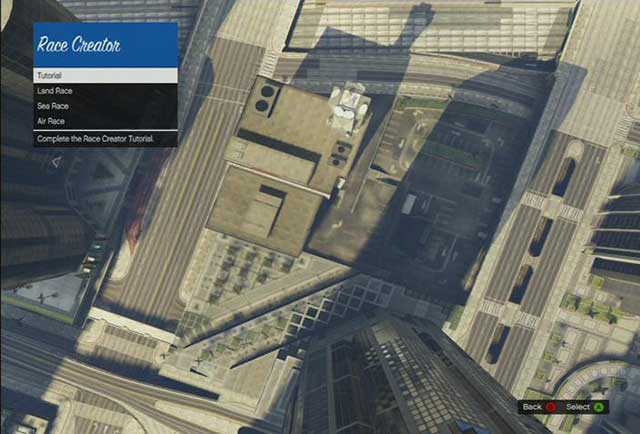
The first step to create a race is to choose one of three variations
- Land Race
- Sea Race
- Air Race
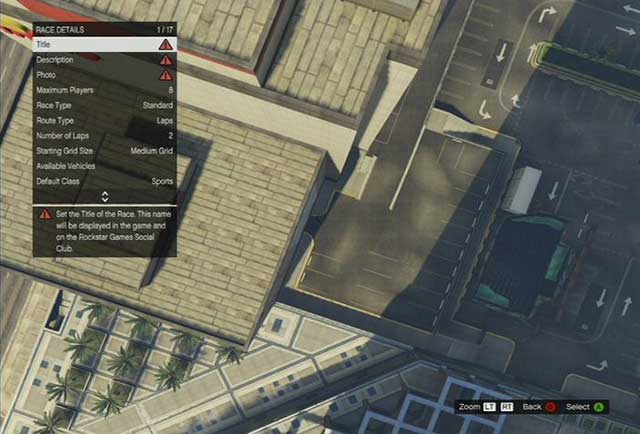
Race details
- Title - 25 characters max
- Description - 250 characters max
- Photo - this will appear while launching the creation as well as on Rockstar Games Social Club website
- Maximum Players- 2-16
- Race Type - Standard, Rally, GTA
- Route Type - Laps, Point-to-point
- Number of Laps - for laps route type you need to set the number of laps from 2 to 99
- Starting Grid Size - depending on vehicle class set the Starting Grid to small, medium or large
- Available Vehicles - here set which vehicle classes will be available to choose from during the race
- Default Class - set which vehicle class will appear as default
- Default Vehicle - set which vehicle will appear as default (can be switched in the Lobby before the game starts)
- Time of Day - Current, Morning, Noon, Night
- Weather - Current, Clear, Rainy
- Traffic - choose whether civil cars may move around the race route or not
- Wanted Level - choose whether or not the police can pursuit players who broke the law
- Background Music - Action or Pursuit
- Lobby Radio - set the radio station that is playing in the Lobby
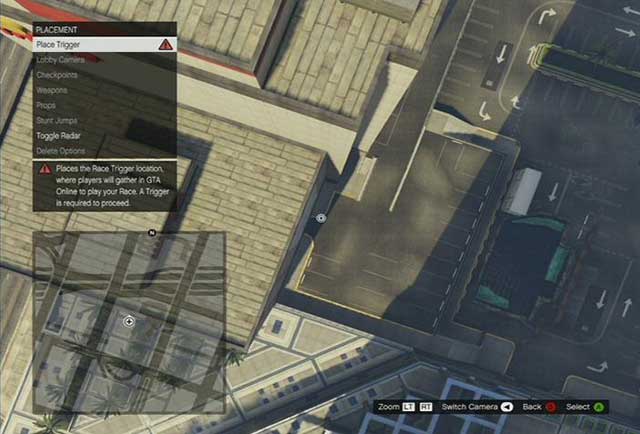
Placement
- Place Trigger - mark the location on the map where players will gather to join the game
- Lobby Camera - must be placed close to the Starting Point. The area you select will be visible for everyone in the Lobby
- Checkpoints - set checkpoints which stand for the race route
- Weapons - in GTA mode, place weapons on the race route
- Props - enrich the route with such elements as ramps, dumpsters, barriers etc.
- Stunt Jumps - you can allow Stunt Jumps on the race route
- Toggle Radar - switch the zoom level of the Radar
- Delete Options - delete selected elements or clear the entire map
Radio - choose a radio station you want to listen to during the creation process
When the creation is ready you need to test it. Click on test option. A race will start.
After you have finished the test you can make some final changes. If everything is working as planned, you have now two options.
Save - you can invite other players to your game, but your creation will not be available in Rockstar Games Social Club.
Publish - your game goes to the website and others can check it out. The best creations get "Rockstar verified".
After you publish a game, you can edit the creation at any moment. To do this, choose Load Content in creator menu.


- GTA 5 Guide
- GTA 5: Grand Theft Auto Online
- GTA 5 Online: Basics
- GTA Online: Character creation
- GTA Online: First steps
- GTA Online: Game menu and interaction menu
- GTA Online: The police
- GTA Online: Mounting a tracker
- GTA Online: Skills development
- GTA Online: Jobs
- GTA Online: Types of jobs
- GTA Online: Joining jobs
- GTA Online: Creating your own jobs
- GTA Online: Creator
- GTA Online: Deathmatch Creator
- GTA Online: Race Creator
- GTA Online: Capture Creator
- GTA Online: The Last Team Standing Creator
- GTA Online: Money
- GTA Online: Protecting your money against other players
- GTA Online: Shopping
- GTA Online: Stores
- GTA Online: Service points
- GTA Online: Online shops
- GTA Online: Real estate agencies
- GTA Online: Joining an existing crew
- GTA Online: Creating your own crew
- GTA Online: Crews
- GTA Online: Cars and tuning
- GTA Online: Weapons
- GTA Online: Past time activities
- GTA Online: Awards
- GTA 5 Online: Basics
- GTA 5: Grand Theft Auto Online
You are not permitted to copy any image, text or info from this page. This site is not associated with and/or endorsed by the developers and the publishers. All logos and images are copyrighted by their respective owners.
Copyright © 2000 - 2026 Webedia Polska SA for gamepressure.com, unofficial game guides, walkthroughs, secrets, game tips, maps & strategies for top games.